


The system administrator is responsible for security of the Linux servers. In this post, I will provide Linux server hardening tips for default installation of Linux system.
- Disk Partitions
- Disable IPv6 Networking - Turn Off IPv6
- Use Secure Shell (SSH)
- Avoid Using FTP, Telnet, and Rlogin / Rsh services on Linux
- Keep system updated
- No accounts with empty Passwords
- Make sure no non-root accounts have UID set to 0
- Disable root Login
- IPtable, fail2ban, IPset and GeoIP filtered access
For more information : See the document, written by ANSSI, the French National Information Security Agency, presents the “Configuration recommendations of a GNU/LINUX system”
Disk Partitions
It’s important to have different partitions to obtain higher data security in case if any disaster happens. By creating different partitions, data can be separated and grouped. When an unexpected accident occurs, only data of that partition will be damaged, while the data on other partitions survived. Make sure you must have following separate partitions and sure that third party applications should be installed on separate file systems under /opt.
1 | / |
Disable IPv6 Networking - Turn Off IPv6
1 | echo 'net.ipv6.conf.all.disable_ipv6 = 1' > /etc/sysctl.d/90-disable-ipv6.conf |
Note: The first one created a file
/etc/sysctl.d/90-disable-ipv6.confwhich contains the configuration setting to disableIPv6and the second one applies the change.
Use Secure Shell (SSH)
Telnet and rlogin protocols uses plain text, not encrypted format which is the security breaches. SSH is a secure protocol that use encryption technology during communication with server. Never login directly as root unless necessary. Use sudo to execute commands. sudo are specified in /etc/sudoers file.
See Hardening SSH Server Setup post for more information.
Avoid Using FTP, Telnet, and Rlogin / Rsh services on Linux
Under most network configurations, user names, passwords, FTP / telnet / rsh commands and transferred files can be captured by anyone on the same network using a packet sniffer.
1 | sudo apt-get --purge remove xinetd nis yp-tools tftpd atftpd tftpd-hpa telnetd rsh-server rsh-redone-server |
Keep system updated
Applying Debian security updates only
1 | sudo grep security /etc/apt/sources.list | tee /etc/apt/security.sources.list |
Press “Y” and “Enter”. Security updates will be installed and your system will be up to date.
To check and apply updates at a later stage do this:
1 | sudo apt update |
Updating all packages (OS and other installed packages)
1 | sudo apt update && sudo apt upgrade |
No accounts with empty Passwords
Type the following command to identify account whith empty Passwords
1 | sudo awk -F: '($2 == "") {print}' /etc/shadow |
and lock all empty password accounts
1 | sudo passwd -l <accountName> |
Make sure no non-root accounts have UID set to 0
Only root account have UID 0 with full permissions to access the system. Type the following command to display all accounts with UID set to 0:
1 | awk -F: '($3 == "0") {print}' /etc/passwd |
You should only see one line as follows:
1 | root:x:0:0:root:/root:/bin/bash |
If you see other lines, delete them or make sure other accounts are authorized by you to use UID 0.
Disable root Login
Never ever login as root user. You should use sudo to execute root level commands as and when required. sudo does greatly enhances the security of the system without sharing root password with other users and admins. sudo provides simple auditing and tracking features too.
To disable, you can remove the password of the account or lock it down, or even do both of them:
Remove the root password:
1
sudo passwd -d root
Lock the account:
1
sudo passwd -l root
Change root User’s Shell
1
sudo vi /etc/passwd
Change the line:
1 | root:x:0:0:root:/root:/bin/bash |
to
1 | root:x:0:0:root:/root:/sbin/nologin |
From now on, when root user logs in, he/she will get the message This account is currently not available. This is the default message, but, you can change it and set a custom message in the the file /etc/nologin.txt. This method is only effective with programs that require a shell for user login, otherwise, sudo, ftp and email clients can access the root account.
IPtable, fail2ban, IPset and GeoIP filtered access
IPtable
iptables is an utility program that allows a system administrator to configure the tables provided by the Linux kernel firewall (implemented as different Netfilter modules) and the chains and rules it stores. Different kernel modules and programs are currently used for different protocols; iptables applies to IPv4, ip6tables to IPv6, arptables to ARP, and ebtables to Ethernet frames.
iptables requires elevated privileges to operate and must be executed by user root, otherwise it fails to function. On most Linux systems, iptables is installed as /usr/sbin/iptables.
iptables let’s you configure default policies for chains in the filter table, where INPUT, FORWARD and OUTPUT, are the main ones (or at least the most used). Users can even define new chains.
These aforementioned chains, are better explained in this graph that comes from Wikipedia.
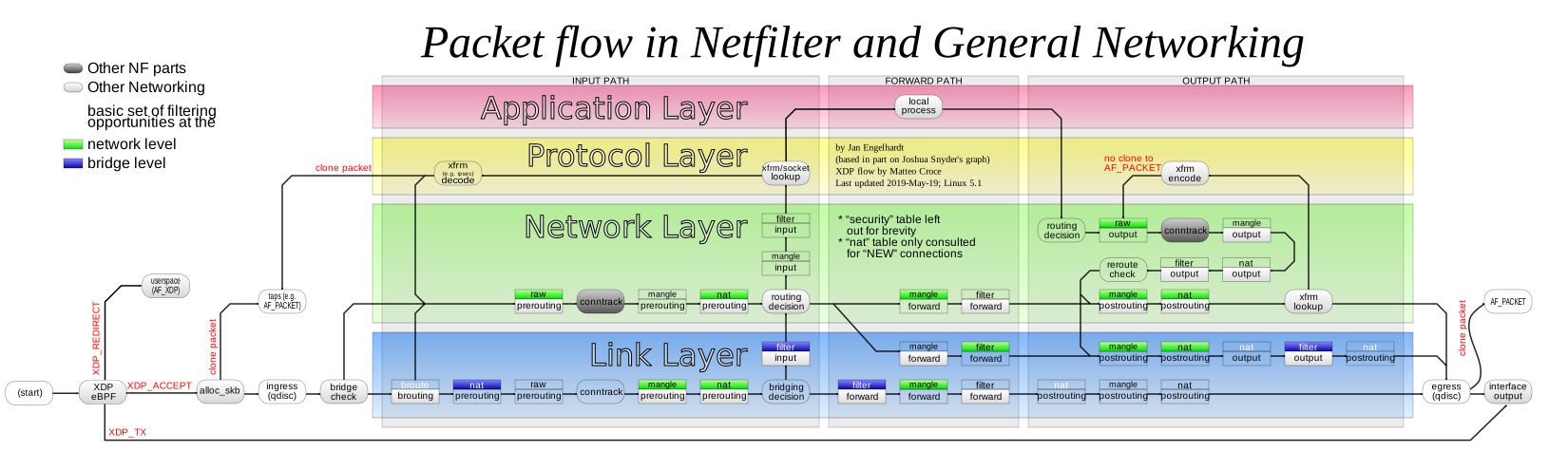 Packet flow in Netfilter and General Networking
Viewing current configuration
1 | sudo iptables -L |
1 | Chain INPUT (policy ACCEPT) |
You may prefer to use iptables -L -vn to get more information, and to see ports as numbers instead of its names.
Delete rules
- Delete all rules
1 | sudo iptables -F |
- Delete spécific rules
1 | sudo iptables -L --line-numbers |
1 | Chain INPUT (policy ACCEPT) |
Notes: For deleted the record number 3 type the command below
1 | sudo iptables -D INPUT 3 |
Save after reboot
1 | sudo /sbin/iptables-save |
Or if you want deleted all rule and save
1 | sudo iptables -F |
Basic commands
- Block from an IP
1
sudo iptables -A INPUT -s 11.22.33.44 -j DROP
- If you want to block only on an specific NIC
1
sudo iptables -A INPUT -s 11.22.33.44 -i eth0 -j DROP
- Or an specific port
1
sudo iptables -A INPUT -s 11.22.33.44 -p tcp -dport 22 -j DROP
- Using a Network and not only one IP
1
sudo iptables -A INPUT -s 11.22.33.0/24 -j DROP
- Block traffic from a specific MAC address Suppose you want to bloc traffic some a MAC address instead of an IP address. This is handy if a DHCP server is changing the IP of the maching you want to protect from.
1
sudo iptables -A INPUT -m mac --mac-source 00:11:2f:8f:f8:f8 -j DROP
- Block incoming traffic to a port Suppose we need to block port 21 for incoming traffic
1
sudo iptables -A INPUT -p tcp --destination-port 21 -j DROP
- Block outgoing traffic to a port If you want to forbid outgoing traffic to port 25, this is useful, in the case you are running a Linux firewall for your office, and you want to stop virus from sending emails.
1
sudo iptables -A FORWARD -p tcp --dport 25 -j DROP
Persist at reboot
In /etc/network/interfaces add below face eth0 inet dhcp this lines :
1 | pre-up iptables-restore < /etc/iptables.up.rules |
So at eatch boot le system load the file /etc/iptables.up.rules
IPset
IP sets are a framework inside the Linux kernel, which can be administered by the ipset utility. Depending on the type, an IP set may store IP addresses, networks, (TCP/UDP) port numbers, MAC addresses, interface names or combinations of them in a way, which ensures lightning speed when matching an entry against a set. If you want to :
- store multiple IP addresses or port numbers and match against the collection by iptables at one swoop;
- dynamically update iptables rules against IP addresses or ports without performance penalty;
- express complex IP address and ports based rulesets with one single iptables rule and benefit from the speed of IP sets
then ipset may be the proper tool for you.
IPset install
1 | sudo apt update |
Listing / adding / removing IP addresses from our blacklist
- To list current IP addresses in our list, do:
1 | sudo ipset list |
- To add an IP address, simply do:
1 | sudo ipset add blacklist <IP-ADDRESS_OR_CIDR-IF-NETHASH> |
- To remove an IP address, do:
1 | sudo ipset del blacklist <IP-ADDRESS_OR_CIDR-IF-NETHASH> |
- To remove ALL IP addresses in a list, use the flush command
1 | sudo ipset flush blacklist |
- Querying to see if IP address is in list
You can use the test command to check if an IP address is in a specific list:
1 | sudo ipset test blacklist <IP-ADDRESS> |
- Deleting a list You might want to delete a list. To do so you can use the ‘destroy’ command:
1 | sudo ipset destroy blacklist |
Persist at reboot
In /etc/network/interfaces add below face eth0 inet dhcp this lines :
1 | pre-up ipset restore -! < /etc/ipset.up.rules |
So at eatch boot le system load the file /etc/ipset.up.rules
GeoIP
Install and configure GeoIP
- Create an free account on GeoIP maxmind to access at the GeoIP database
- Install
geoipupdate_4.0.6-2_arm64.debdebian packageNote: The last version of geoipupdate doesn’t exist in debian1
sudo apt install geoipupdate
busterversion, but thebullseyeversion ofgeoipupdatepackage is compatible tobuster. Get the geoipupdate package inbullseyedebian version here for your CPU arch.1
2
3cd /tmp/
wget http://ftp.ch.debian.org/debian/pool/contrib/g/geoipupdate/geoipupdate_4.0.6-2_arm64.deb
sudo apt install /tmp/geoipupdate_4.0.6-2_arm64.deb - Create a licence key on
https://www.maxmind.com/en/accounts/<user_id>/license-key - Create a config file
GeoIP.confin/etc/And add this line :1
sudo touch /etc/GeoIP.conf
1
2
3
4
5
6
7
8
9
10
11
12
13
14
   # GeoIP.conf file for `geoipupdate` program, for versions >= 3.1.1.
   # Used to update GeoIP databases from https://www.maxmind.com.
   # For more information about this config file, visit the docs at
   # https://dev.maxmind.com/geoip/geoipupdate/.

# "AccountID" is from your MaxMind account.
AccountID <user_id>

# "LicenseKey" is from your MaxMind account
LicenseKey <LicenseKey>

# "EditionIDs" is from your MaxMind account.
EditionIDs GeoLite2-ASN GeoLite2-City GeoLite2-Country - Automatic Updates for GeoIP2 MaxMind provides the GeoIP Update program, which performs automatic updates for both GeoIP2 and GeoIP Legacy binary databases. Please follow the instructions below.
- Step 1 – Install GeoIP Update The latest release may be downloaded from GitHub Releases. See here for installation instructions.
Note: If you are using an older version of GeoIP Update, you may need to upgrade to GeoIP Update 4.x or later version. The 4.x and later versions meet our requirement for using TLS 1.2 or greater for all requests to our servers to keep your data secure.
1 | sudo apt update |
- Step2 – Run GeoIP
1 | sudo geoipupdate -v |
1 | Using config file /etc/GeoIP.conf |
1 | ls -la /var/lib/GeoIP |
1 | total 70896 |
- Step 3 – Run GeoIP Update Run
geoipupdate. To fully automate this process on Linux or Unix, use a crontab file like:
1 | ############### |
Notes: This cron expression would run every week at
00:00 on Sunday.
Direct download GeoIP CVS format database
You can direct download GeoIP CVS format database whith command line below :
1 | cd /tmp |
Note:
<LicenseKey>is your maxmind.com licence key created in bullet3.
Secured acces now with iptable, ipset and GeoIP
Now we know iptable. And ipset & GeoIP are installed. So we can secure outcoming and incoming network traffic from our server.
iptables to allow traffic from private network and one country only
- create a hashmap with
ipsetto allow private IP to access your host - create a hashmap with
ipsetto allow only french IP to access your host - loading this rules in
iptable - And persist rules for each system reboot
- Add a cron entry for the regular update of the hash table
The scripts below (os_ipset_update.sh ) do it automatically
1 |
|
Note: In script
os_ipset_update.sh
<LicenseKey>is your GeoIP maxmind.com licence key- Only French public IP are allow
- All private IP are allow
- And localhost are allow
To fully automate this process on Linux or Unix, use a crontab file like.
1 | ############### |
Notes: run every week at
23:00 on Saturdayfor example.
fail2ban
See part on fail2ban in Protect against DDOS and brute force attacks with fail2ban post.