


AP setup & WiFi management for Debian devices
RaspAP wifi configuration portal
RaspAP lets you quickly get a WiFi access point up and running to share the internet connectivity. The installer creates a known-good default configuration that “just works”. A handsome responsive interface gives you control over the relevant services and networking options. OpenVPN client support, SSL, security audits, themes and multilingual options round out the package.
Prerequisites
Start with a clean install of the latest release of Debian (currently Debian 10 (Buster)).
- Update, including the kernel and firmware, followed by a reboot:
1 | sudo apt update |
Quick installer
- Install
RaspAPfrom your shell prompt
1 | curl -sL https://install.raspap.com | bash |
The installer will complete the steps in the manual installation (below).
After the reboot at the end of the installation the wireless network will be configured as an access point as follows.
- IP address: 10.3.141.1
- Username:
admin - Password:
secret
- Username:
- DHCP range for wlan :
10.3.141.50to10.3.141.255 - SSID:
raspi-webgui - Password:
ChangeMe
As the name suggests, the Quick Installer is a great way to quickly setup a new AP. Best results are obtained by connecting to server to ethernet (eth0) or as a WiFi client, also known as managed mode, with wlan0. For the latter, refer to this FAQ.
Ad Blocking
This feature is currently in beta. To enable ad blocking, simply use the installer to (re)install RaspAP using the –adblock option:
1 | curl -sL https://install.raspap.com | bash -s -- --adblock |
More details are provided here.
Bridged AP
By default RaspAP configures a routed AP for your clients to connect to. A bridged AP configuration is also possible. Slide the Bridged AP mode toggle under the Advanced tab of Configure hotspot, then save and restart the hotspot.
In bridged mode, all routing capabilities are handled by your upstream router. Because your router assigns IP addresses to your hotspot and its clients, you might not be able to reach the RaspAP web interface from the default 10.3.141.1 address. Instead use your hostname followed by .local to access the RaspAP web interface.
More information on Bridged AP mode is provided here
Simultaneous AP and Wifi client
RaspAP lets you easily create an AP with a Wifi client configuration. With your server configured in managed mode, enable the AP from the Advanced tab of Configure hotspot by sliding the Wifi client AP mode toggle. Save settings and start the hotspot. The managed mode AP is functional without restart.
This option is disabled until you configure your server as a wireless client. For a server operating in managed mode without an eth0 connection, this configuration must be enabled before a reboot.
Manual installation
These steps apply to the latest release of Debian (currently Buster), Debian and Armbian. Notes for previous versions, Ubuntu Server 18.04 TLS and 19.10 are provided, where applicable.
| Distribution | Release | Architecture | Support |
|---|---|---|---|
| Raspbian | Buster |
ARM |
Official |
| Armbian | Buster |
ARM |
Official |
| Debian | Buster |
ARM / x86_64 |
Beta |
| Ubuntu | 18.04 LTS / 19.10 |
ARM / x86_64 |
Beta |
- Start off by following the project prerequisites, updating your kernel, firmware and packages to their latest versions:
1 | sudo apt update |
On Ubuntu Server, add a dependency and the ppa:ondrej/php apt package.
1 | sudo apt-get install software-properties-common |
On Debian, Armbian and Ubuntu, install dhcpcd5. Note: skip this step if using Raspbian.
1 | sudo apt-get install dhcpcd5 |
- Install
git,nginx,php7,hp7.3-fpm,hostapd,dnsmasqand some extra packages.
for Ubuntu, you may replace php7.3-cgi with php7.4-cgi. For Raspbian Stretch, replace php7.3-cgi with php7.0-cgi.
php5is no longer supported.
1 | sudo apt-get install nginx git hostapd dnsmasq iptables-persistent vnstat qrencode php7.3-cgi hp7.3-fpm |
- Enable
PHPfornginxand restart it for the settings to take effect.
1 | upstream php-handler { |
As with every configuration change in nginx, we need to restart the service
1 | # Test configuration file for syntax errors by typing |
- Prepare the web destination and git clone the files to
/var/www/RaspAP.
1 | sudo rm -rf /var/www/RaspAP |
Now comes the fun part. For security reasons, the www-data user which nginx runs under is not allowed to start or stop daemons, or run commands like ifdown and ifup, all of which we want RaspAP to do. So we will add the www-data user to sudoers, but with restrictions on what commands the user can run. Copy the sudoers rules to their destination:
1 | cd /var/www/RaspAP |
The /etc/sudoers.d/090_raspap below
1 | www-data ALL=(ALL) NOPASSWD:/sbin/ifdown |
- Create the RaspAP configuration directories. Add /etc/dhcpcd.conf as a base config:
1 | sudo mkdir /etc/raspap/ |
- Move RaspAP’s auth control file to the correct location.
1 | sudo cp raspap.php /etc/raspap |
- Set the files ownership to
www-datauser for the web files and RaspAP config.
1 | sudo chown -R www-data:www-data /var/www/RaspAP |
- Move the
hostapdlogging and service control shell scripts to the correct location.
1 | sudo mv installers/*log.sh /etc/raspap/hostapd |
- Set ownership and permissions for the logging and service control scripts.
1 | sudo chown -c root:www-data /etc/raspap/hostapd/*.sh |
- Move the
raspapddaemon to the correct location and enable it.
1 | sudo mv installers/raspapd.service /lib/systemd/system |
- Copy the configuration files for
dhcpcd,dnsmasq, andhostapd. Optionally, backup your existinghostapd.conf.
1 | sudo mv /etc/default/hostapd ~/default_hostapd.old |
- Disable
systemd-networkdand copy the bridge configuration.
1 | sudo systemctl stop systemd-networkd |
- (Optional) Optimize PHP, replacing php7.3-cgi with your installed version.
1 | sudo sed -i -E 's/^session\.cookie_httponly\s*=\s*(0|([O|o]ff)|([F|f]alse)|([N|n]o))\s*$/session.cookie_httponly = 1/' /etc/php/7.3/cgi/php.ini |
- Enable IP forwarding
1 | echo "net.ipv4.ip_forward=1" | sudo tee /etc/sysctl.d/90_raspap.conf > /dev/null |
- Create
iptablesNAT rules and persist them.
1 | sudo iptables -t nat -A POSTROUTING -j MASQUERADE |
- Unmask and enable
hostapd.service.
1 | sudo systemctl unmask hostapd.service |
- (Optional) Install
OpenVPN, enabling the option in RaspAP’s config and enable the openvpn-client service.
1 | sudo apt-get install openvpn |
- (Optional) Create
OpenVPNauth control scripts, set ownership and permissions.
1 | sudo mkdir /etc/raspap/openvpn/ |
- Reboot and it should be up and running.
The default username is admin and the default password is secret.
RaspAP screenshot
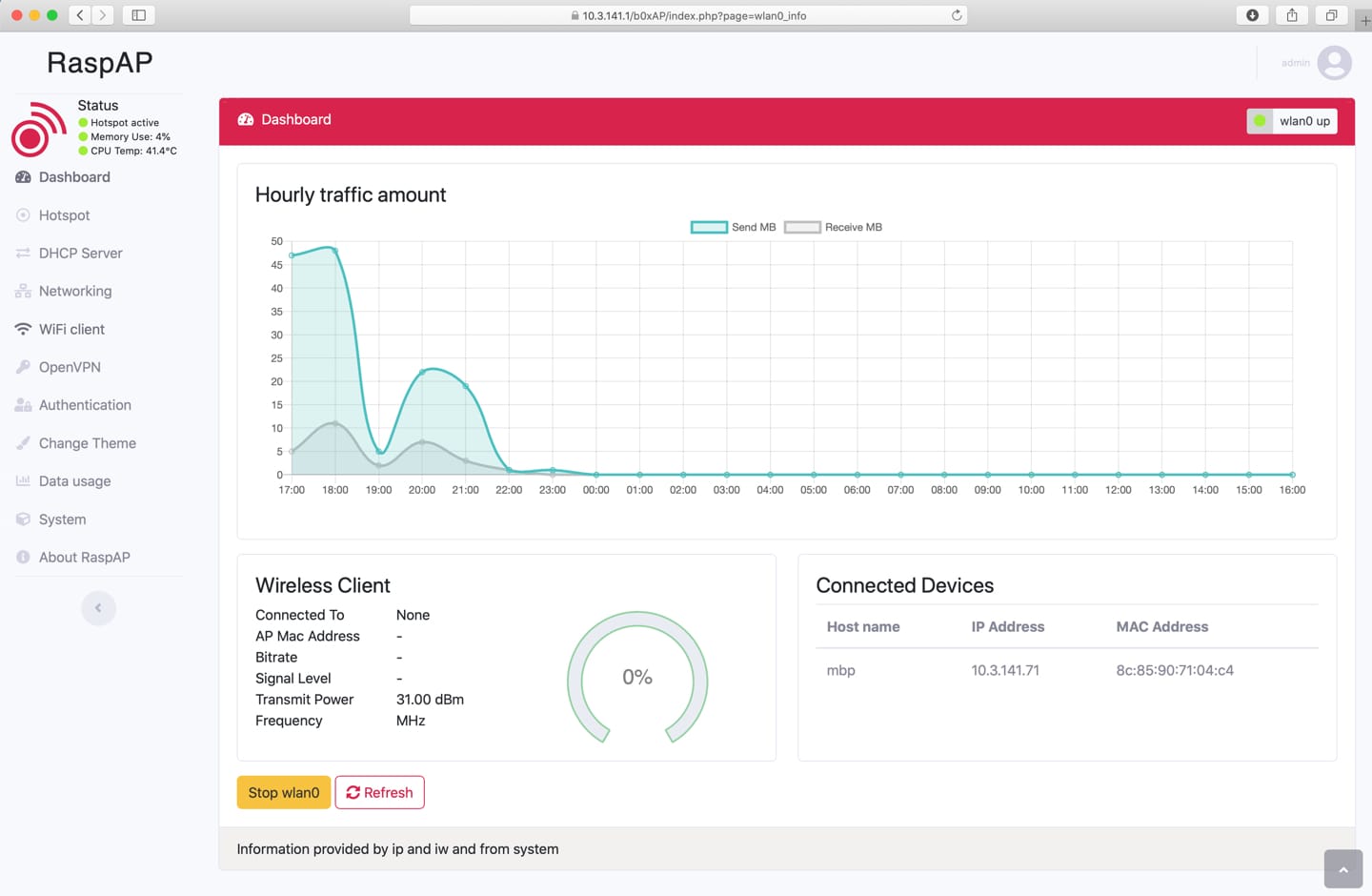
RaspAP GUI screenshot